

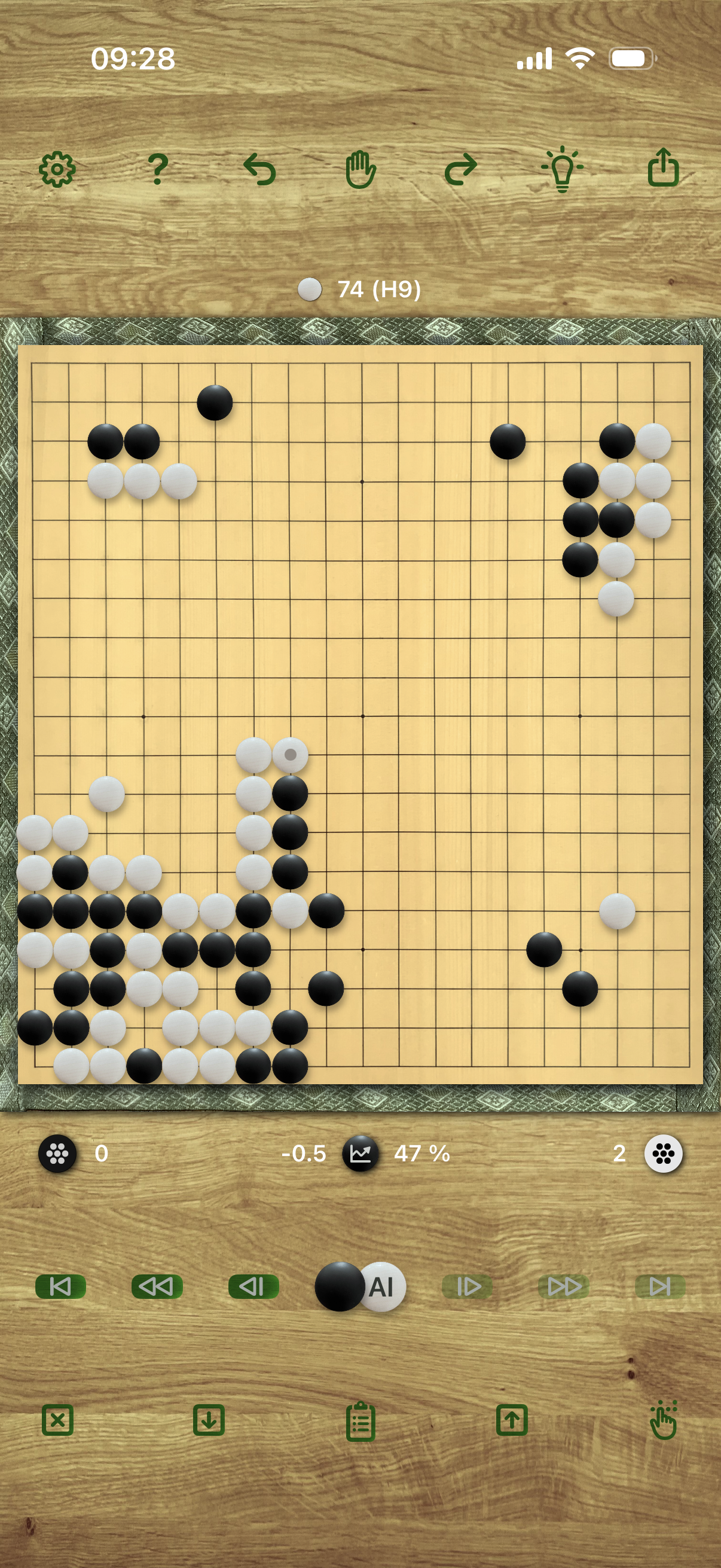

Play Go with KataGo on iPhone and iPad.
Bring one of the world's strongest Go AI engines, KataGo, directly to your iPhone or iPad — fully offline, no internet or servers required.
Play, analyze, and improve your Go game anywhere, against AI opponents ranging from advanced beginner to professional and superhuman levels.
Key Highlights
| • | Fully offline KataGo AI — play anywhere, anytime |
| • | Runs KataGo's METAL backend on the GPU to achieve extreme strength |
| • | Adjustable AI strength: 10-kyu to full superhuman KataGo, with very realistic
imitation of human ranks. (This feature is not available on iPad 7th generation from 2019/2020 due to hardware limitations.) |
| • | Realistic boards and stones: Hyuga Kaya boards with slate and clam shell stones, board sizes 19 x 19, 13 x 13 and 9 x 9 |
| • | Game analysis and hints: review moves with color codes for expected point loss, estimate territory, and check win rates |
| • | SGF support: open, share, and store Go game files easily |
Play & Learn
SakataGo combines the KataGo engine with powerful analysis tools:
| • | Step through games forward and backward, get AI hints, and see territory and win rate estimates |
| • | Store up to twenty positions in a review stack and cycle through them; continue playing from any review position, keeping the reviewed game stored or in the clipboard |
| • | Choose between human imitation levels (10-kyu to 9-dan, device dependent) or full KataGo superhuman strength, based on latest neural network models (2025/2026) |
| • | Switch opponent strength, AI player and think times during a game to review different reactions |
User Settings
| • | AI player (white, black, none, or both (as from version 4.0)) |
| • | Board size (19 x 19, 13 x 13, 9 x 9) |
| • | Human strength (10k-9d or full strength, device dependent) |
| • | Handicap and Komi adjustments |
| • | Choice of Japanese or Chinese rules |
| • | AI think time and hint calculation time |
| • | Optional on-screen win rate and score display |
| • | Select between two KataGo neural net models (small and large) |
| • | Stone placement help on or off (v3.0+) |
| • | Sound on or off |
Realistic Design
| • | Enjoy a beautiful, natural board and stone setup, with slight imperfections for a realistic feel. |
| • | SakataGo's easy-to-use interface focuses on essentials so you can focus on playing and improving your game. |
Game Sharing & SGF Support
| • | Open SGF files from the Files App, from the clipboard or via Share Extension |
| • | Share games or positions via clipboard or compatible apps, or save to file |
| • | Note: variants in SGF files are not supported. SakataGo's main focus is offline AI gameplay and review. However, by using SakataGo's review stack and clipboard functionalities, you can easily play out variants and return to former positions. |
The focus on essentials allows us to keep the price significantly below several other Go playing and learning environments, while having a fully functional KataGo on the mobile device.
Demo Video
If your browser supports it, you can watch a short video with SakataGo in action here (version 3.0).
In the video, you will first see the beginning of an even game on the 9 x 9 board against the AI (at human imitation level 1-dan), starting on the settings sheet, and some features of the analysis mode.
Then the user starts a game on the large board (19 x 19) against the AI at full strength. He uses the hint and territory buttons and reviews some moves in the analysis mode, then shows the help sheet.
More detailed explanations of the SakataGo features are given below.
Features Overview
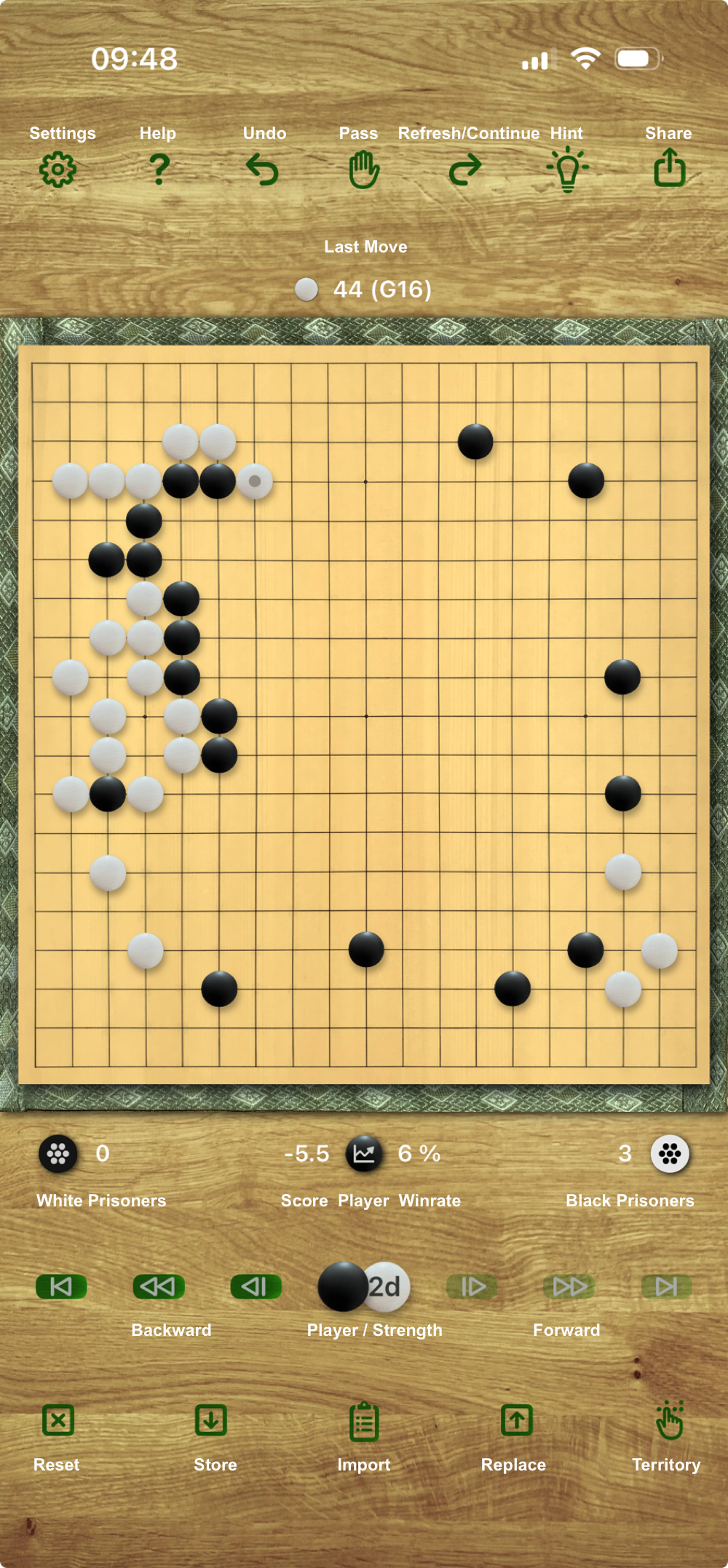
The main view elements are labelled in the screenshot displayed here, and explained in more detail below.
The top button line provides settings and help on the left, hints and sharing on the right. The middle buttons are for playing (undo and pass, resp. resign (version 4.0+)) and for "refreshing", resp. "continuing" a game.
When the app is in play mode, the refresh button clears the clipboard for further activities and clears all hints and territory information from the screen. When the app is in analysis mode (see below), the refresh button allows to play on from the currently reviewed situation.
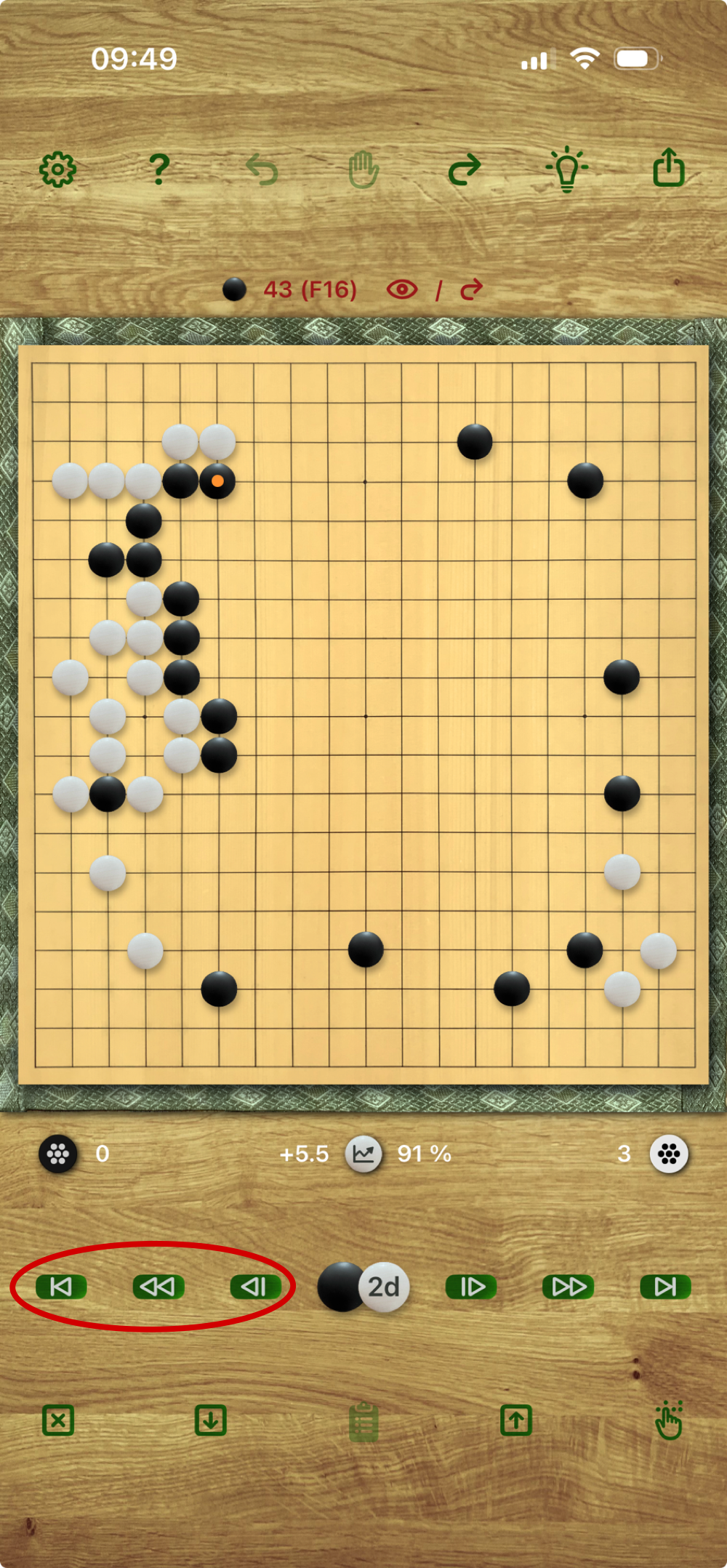
The status line above the board shows the last move played. In analysis mode, the status line changes color to red and displays a review symbol to make the user aware of the analysis mode.
The status line below the board shows prisoners and current game situation from the perspective of the player who has the next move. If score and win rate information are displayed in white font, the information is up-to-date for the current position; a pale gray font indicates that the information is from a former position. A tap on the little chart symbol between score and win rate switches the score/win rate display on and off.
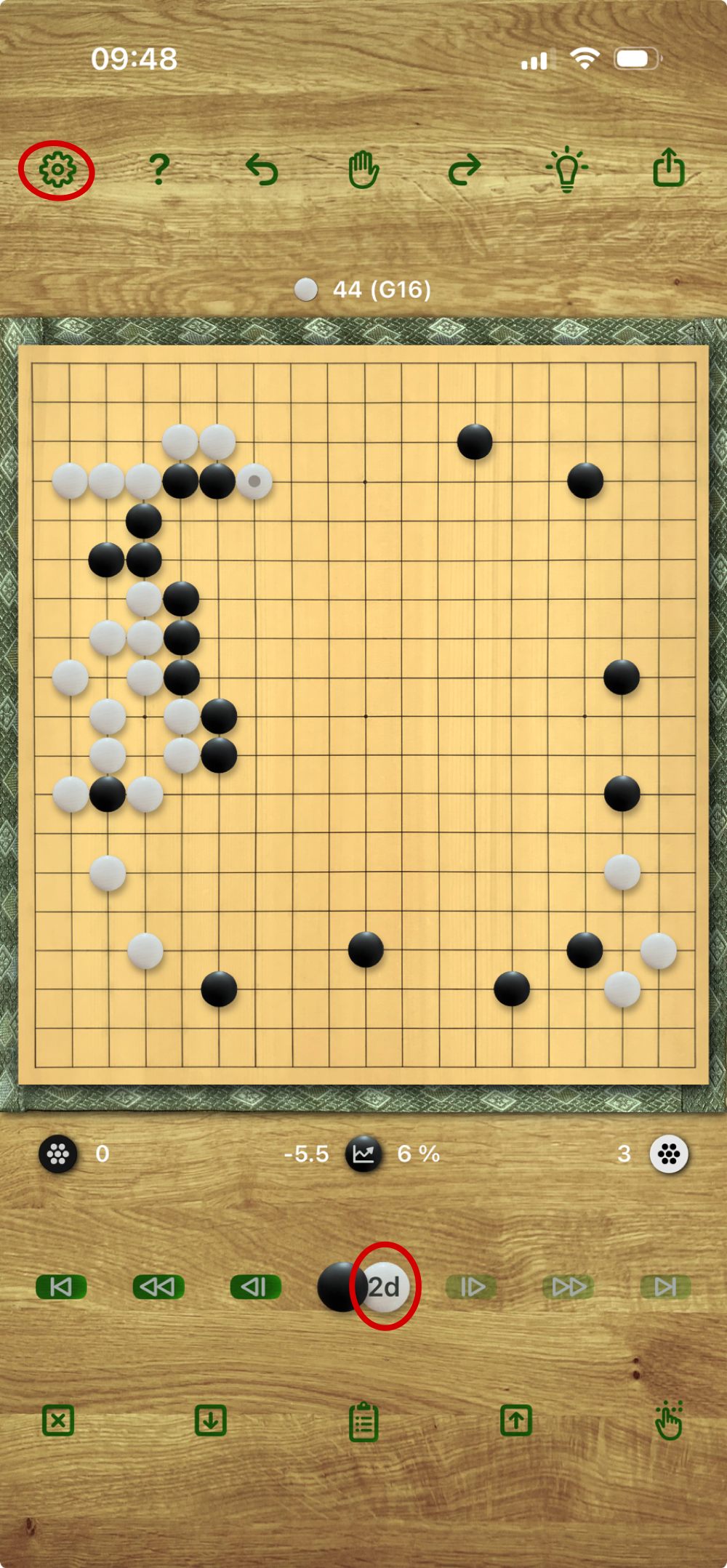
Below the status line you find a central information panel showing the next player to move, which player is the AI player, and the "human strength" of the AI player (if any). In the example on the left you see a 2-dan white AI player, and black to move. The symbol "AI" instead of a dan/kyu level indicates full strength. If you perform a long press on the player and strength symbol, you can change the table background to a simple gray color.
The backward and forward buttons on the left and right of the player info are used to move through the current game and review situations (analysis mode).
The bottom button line is for starting a new game (Reset button) and territory information (Territory button). The three buttons in the middle are for storing and revisiting positions, resp. for importing games from the clipboard. SakataGo uses the clipboard in various situations. You can import a game via the clipboard, but mostly it is used for keeping the current game available when a different position is reviewed. A click on a (filled) clipboard button will swap the current game on screen with any game/position in the clipboard. A second click will swap back to the previous situation.
When the Replace button is used to show a previously stored position on screen, the current game is saved temporarily (if not already saved on the stack) - so you can always come back to it by cycling through the stored positions. Store and Replace as well as file exchange with SakataGo are explained in more detail below.
Human Imitation Modes
SakataGo provides settings for imitating human amateur players of various strengths, from 10 kyu to 9 dan (approximate KGS ratings). These are available on all iOS/iPadOS 18+ devices except the iPad 7th generation from 2019/2020.
You can change this setting during a game to experiment with different strengths.
When asking the AI for hints in human imitation mode, the hints will be computed in full-strength KataGo mode for the current model (see also the section on hints below).
Territory Estimation
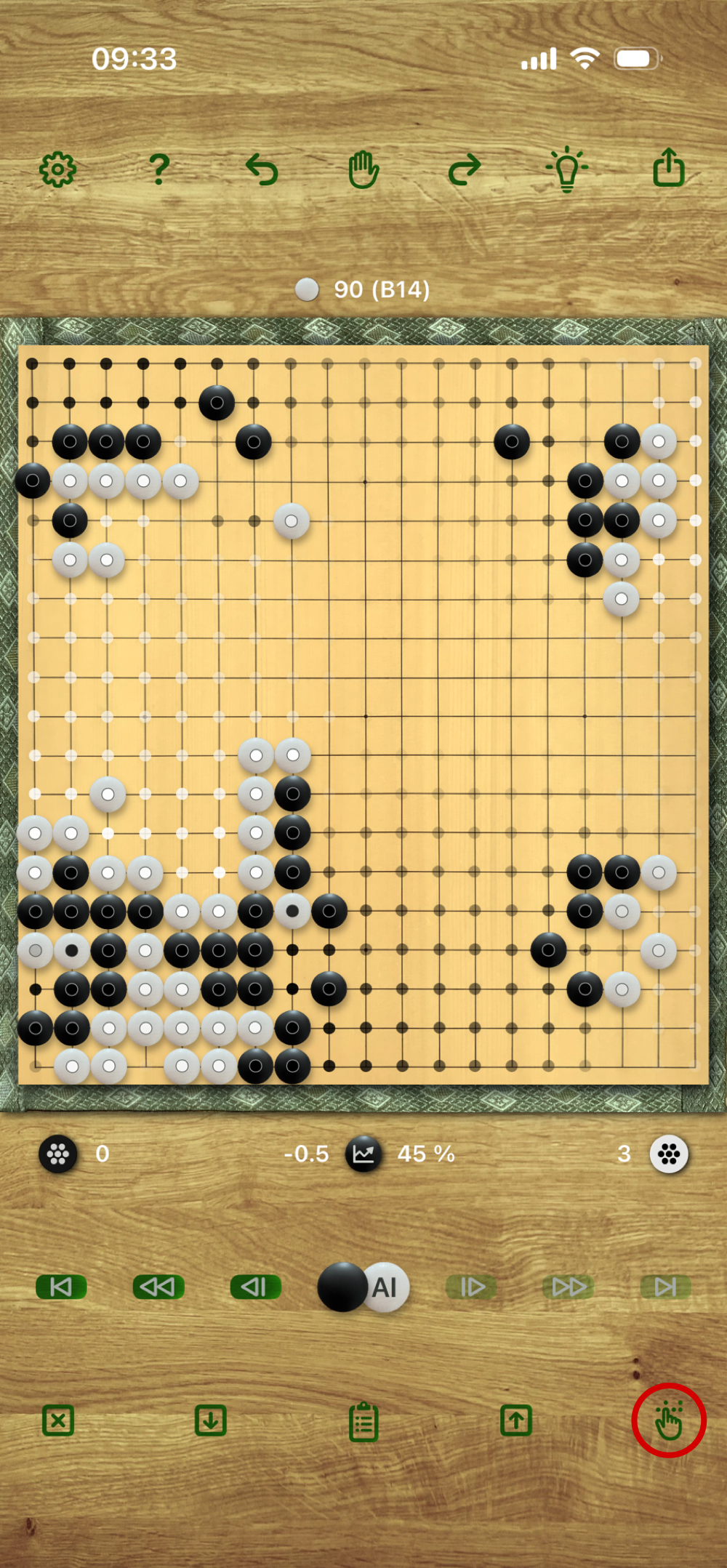
SakataGo shows AI territory estimations provided by the KataGo engine.
The current final ownership probability estimate is shown with white and black points on the board, in varying opacity. A strong coloring indicates a high probability.
As from version 3.0, SakataGo also shows an estimate of separate scores for black and white based on current ownership probabilities.
During the game, SakataGo uses KataGo's playing and hint responses as well as direct raw neural net evaluations to show realistic score and winrate estimates in a status line below or left of the board.
In case KataGo is itself uncertain of the territory development in complex situations, the status line will show one or two questionmarks behind the score to indicate an unclear or very unclear score estimate.
There is also a final score calculator providing a definitive score at the end of a game.
Hints
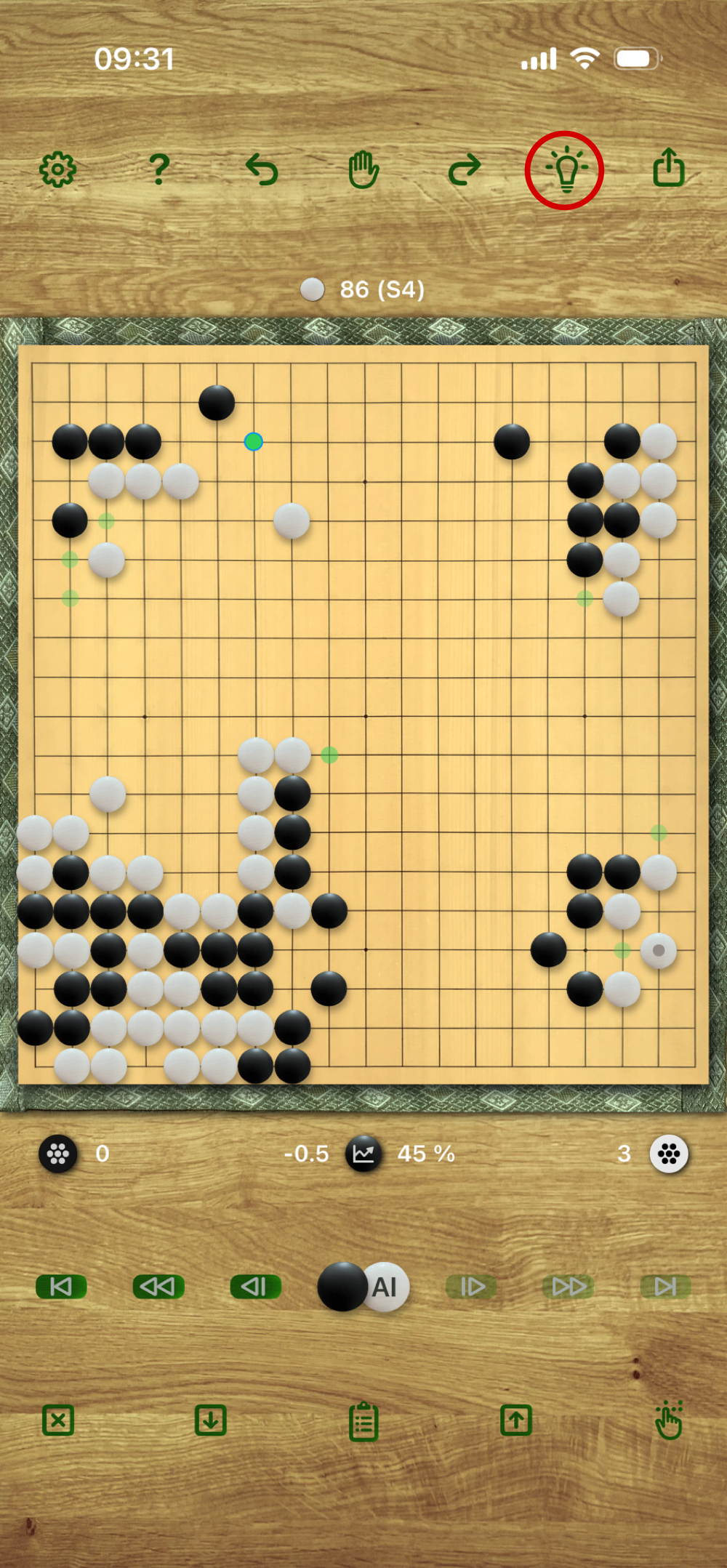
SakataGo shows AI hints as green dots with varying opacity indicating the expected quality of the move.
Hint points with a strong coloring indicate the best moves, lower opacity moves are weaker. Several hints can have the same opacity when they all lead to the same winrate estimate.
SakataGo will not show hints that lose too much winrate, except in situations where a game is lost to one side anyway and the winrate is very close to zero for that side.
In particular, SakataGo will not filter out hints toward the end of the game that are only helpful in 'desperate' situations. For example, when a game is clearly lost, the AI might still produce some deperate measure moves that will only be successful if the opponent makes a blunder.
The hint time setting (see below) will have an influence on the number of hints shown in many, but not all, situations. In some situations there is only one move...
As from version 4.0, a long press on the hint button will switch on/off automatic hint calculation in analysis mode.
Analysis Mode
SakataGo allows to review games and play out different variants using the back and forward buttons below the board.
Pressing any of the backward buttons when you are in play mode will enter the analysis mode.
The analysis mode is signalled with a red status line above or left of the board. Playing functions, pass, undo and importing from the clipboard are disabled during analysis mode.
You can show hints and territory estimates in analysis mode, and you can store up to ten positions for further review and cycle through them (or share them as SGF files). When you cycle through stored positions, you are always directly in playing mode, so you can study playing on from any stored situation.
There is a "play on" functionality for continuing a game from any given position while keeping the original game in the clipboard. You can stop playing on from a given situation by tapping on the clipboard button, reverting to the original game, or by loading one of the stored positions.
As from version 2.0, SakataGo shows colored dots on the reviewed moves indicating the expected point loss of the move. The color codes are:
| Dark green: | no point loss or up to 0.5 points loss |
| Light green: | 1.0 point loss |
| Yellow: | less than 3.0 points |
| Orange: | at least 3.0 points |
| Red: | at least 5.0 points |
| Purple: | at least 10.0 points |
When you load an external SGF file into SakataGo, the app will compute the necessary information to show the colored move quality dots "on the fly" while you review the game.
Store & Replace
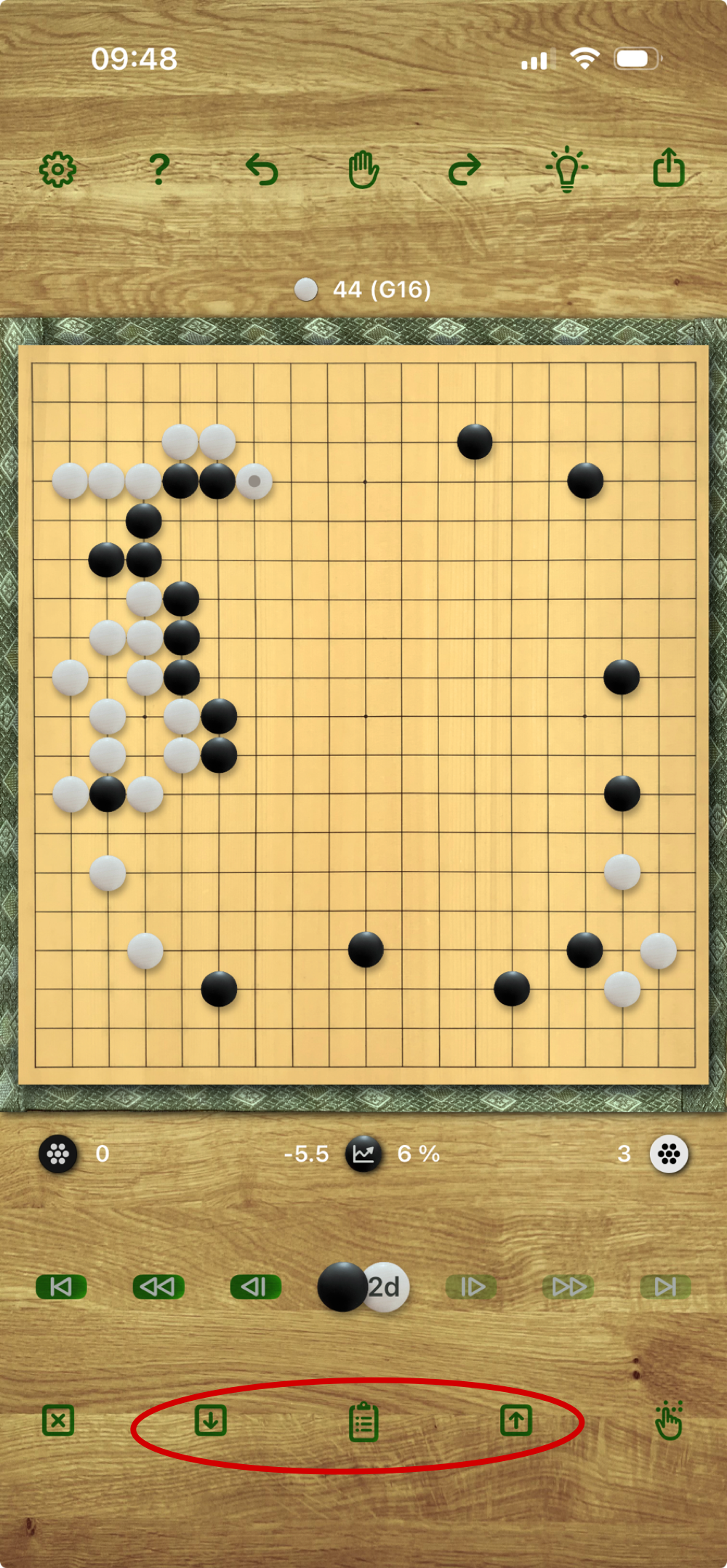
The store and replace buttons, here shown at the bottom of the screen, allow to save up to twenty positions, together with their main settings, in a "stack". This can be done both in play mode and in analysis mode.
Each press on the store button adds a position to the stack. When you press more than twenty times, the oldest position is lost.
Pressing the replace button will cycle through the stored positions and settings. If you started on a non-stored position, you can cycle back to it - SakataGo remembers the position in a reserved slot of the storage stack. As from version 2.0, the storage stack will no longer touch the clipboard. So you can safely keep an analyzed game in the clipboard and cycle through the stack.
The version 3.0 (July 2026) will further improve the store and replace functions. With a long press on the replace button, you will get a list of the stored positions and can select which to load to the screen. You can also always directly go back to the active game (the game last changed by playing a move).
A long press on the store button opens a dialog that allows you to delete single stored positions (v3.0+) or the entire stack for a fresh start.
The current stack will be saved to disk when you leave the app and reloaded on the next start — stored positions will not be lost.
File Exchange
SakataGo allows you to share SGF files, to receive SGF files shared by other apps, and to open SGF files directly from the Files App.
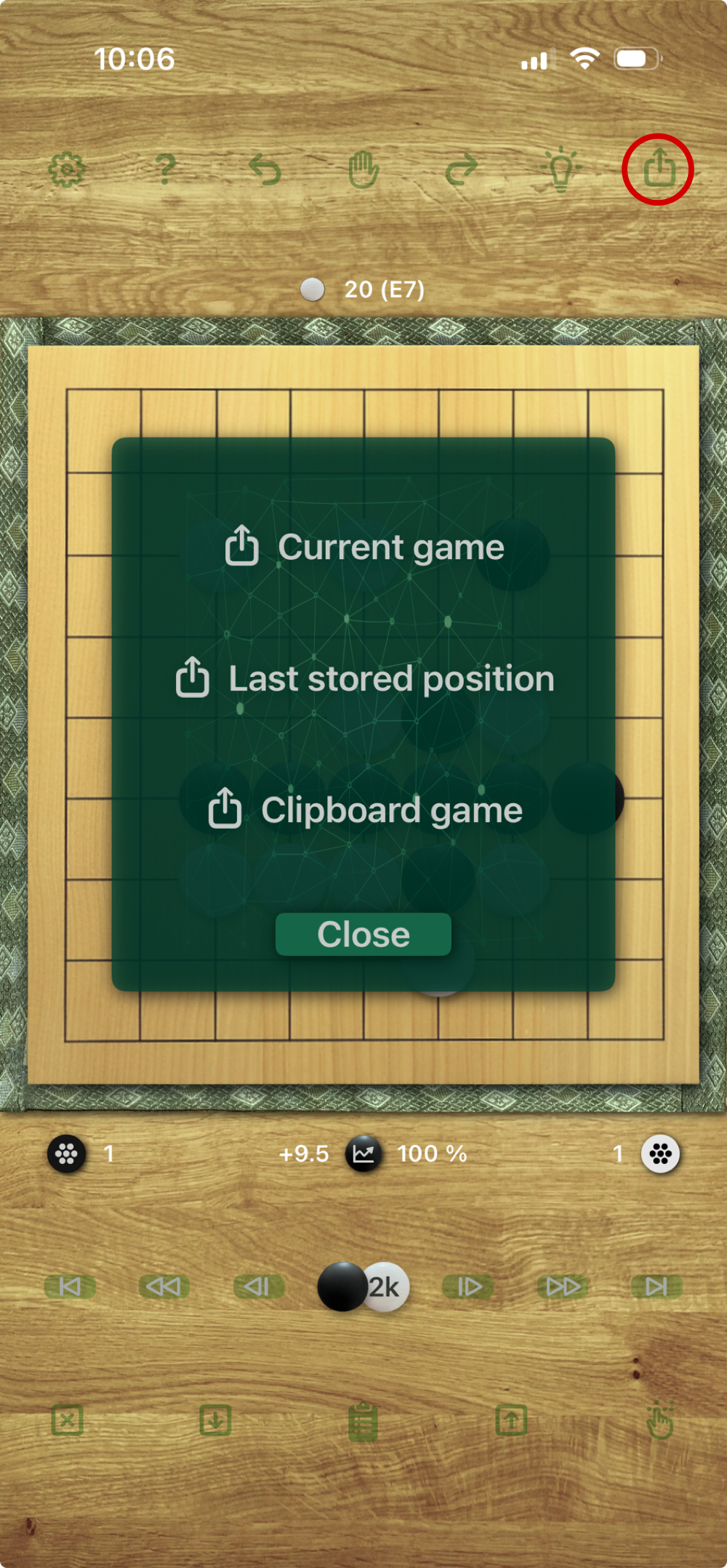
Use the share button to open a dialog for sharing the current game, the last stored position (if any) or the game currently saved in the clipboard. From the share sheet that opens, you can also copy the game or save it as an SGF file.
As from version 3.0, the share button opens a dialog for sharing the active game or any of the stored positions. A tappable mini kifu preview is shown on the share dialog.
From any app that can share SGF or text files, resp. text content, you can use the share sheet to transfer a game to SakataGo. SakataGo will not automatically open from a share sheet, but when you switch to the app, it will automatically load the latest file you shared and save the last game to the clipboard. SakataGo will try to interpret any selected text content that you share as SGF.
From the Files App, you can either share to SakataGo or open an SGF file directly in SakataGo via "Open in ...". If you define SakataGo as the standard app for SGF files in the Files App, you can open them from the Files App simply by clicking on them.
Please note, however, that SakataGo is not a full SGF editor. For example, there is no support for variants in SGF files.
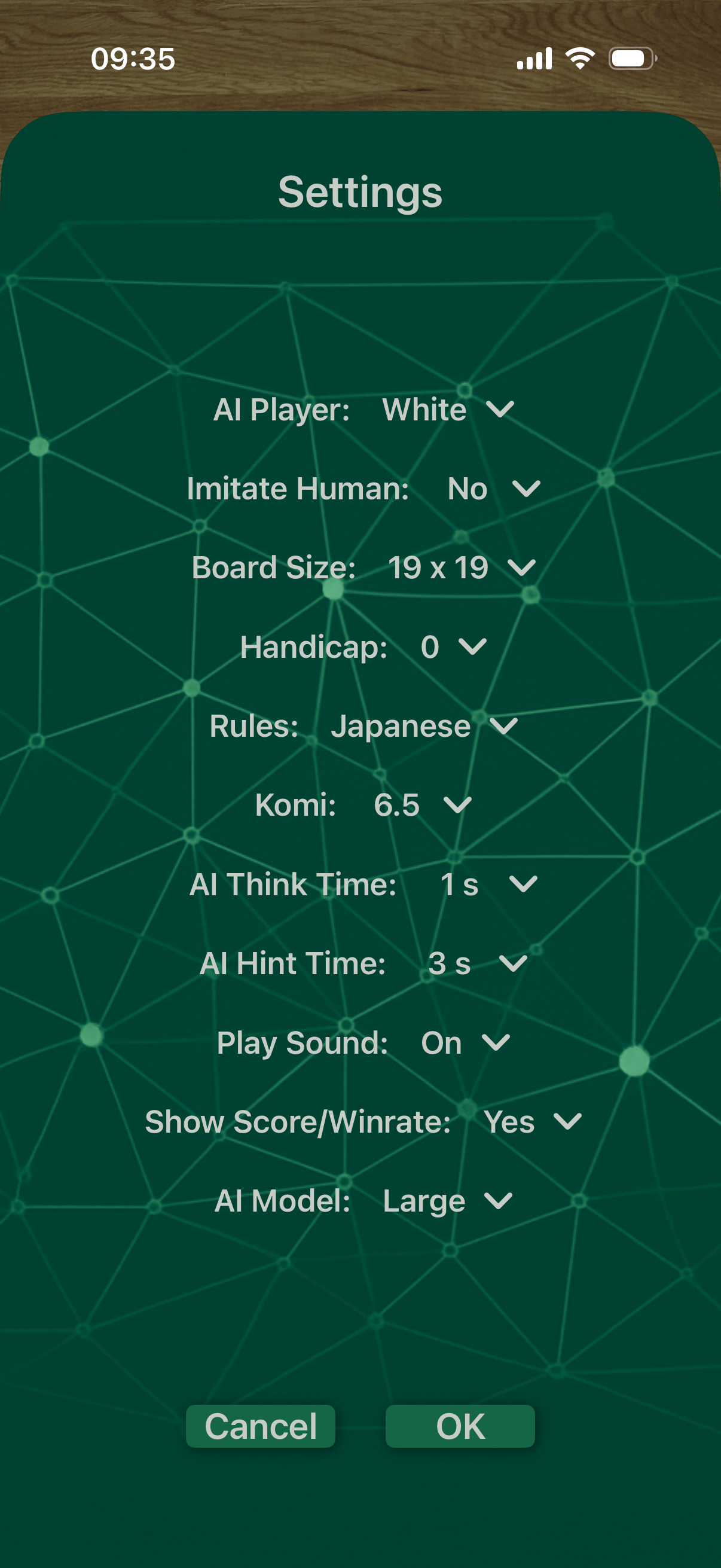
Settings
SakataGo's settings are mostly self-explanatory.
You can choose the AI player (white, black, none - to set the board or simply use it for playing, or both for self play (v4.0+)), and the AI strength including human imitation modes in a range from roughly KGS 10 kyu up to full KataGo strength.
Of course, you can also set handicap and komi, and you have a choice between Chinese and Japanese rule sets (as implemented in KataGo).
The app has two time settings: the AI think time for the playing engine and the AI hint time. For example, you can use a short think time to play more quickly and a higher hint time for getting a more in-depth situation analysis when asking for hints. A high think time will further increase the engine's playing strength.
Further settings allow you to switch off the sound, so you can listen to music on your device while playing Go. You also can hide the score and winrate information to stay focused only on the game.
As from version 3.0, you can also switch on or off the stone placement preview shown when dragging a finger over the board to place the next stone.
Finally, you have the choice between two different KataGo models: a small model (b18) for quicker load times and less memory consumption, and a large model (b28) for full strength. The additional model loaded for human imitation modes cannot be modified.
Not all settings can be changed in the analysis mode, and the handicap setting can only be changed at the beginning of a game. A small "chevron down" symbol (v) on the right of a setting indicates it can be changed in the current game situation.
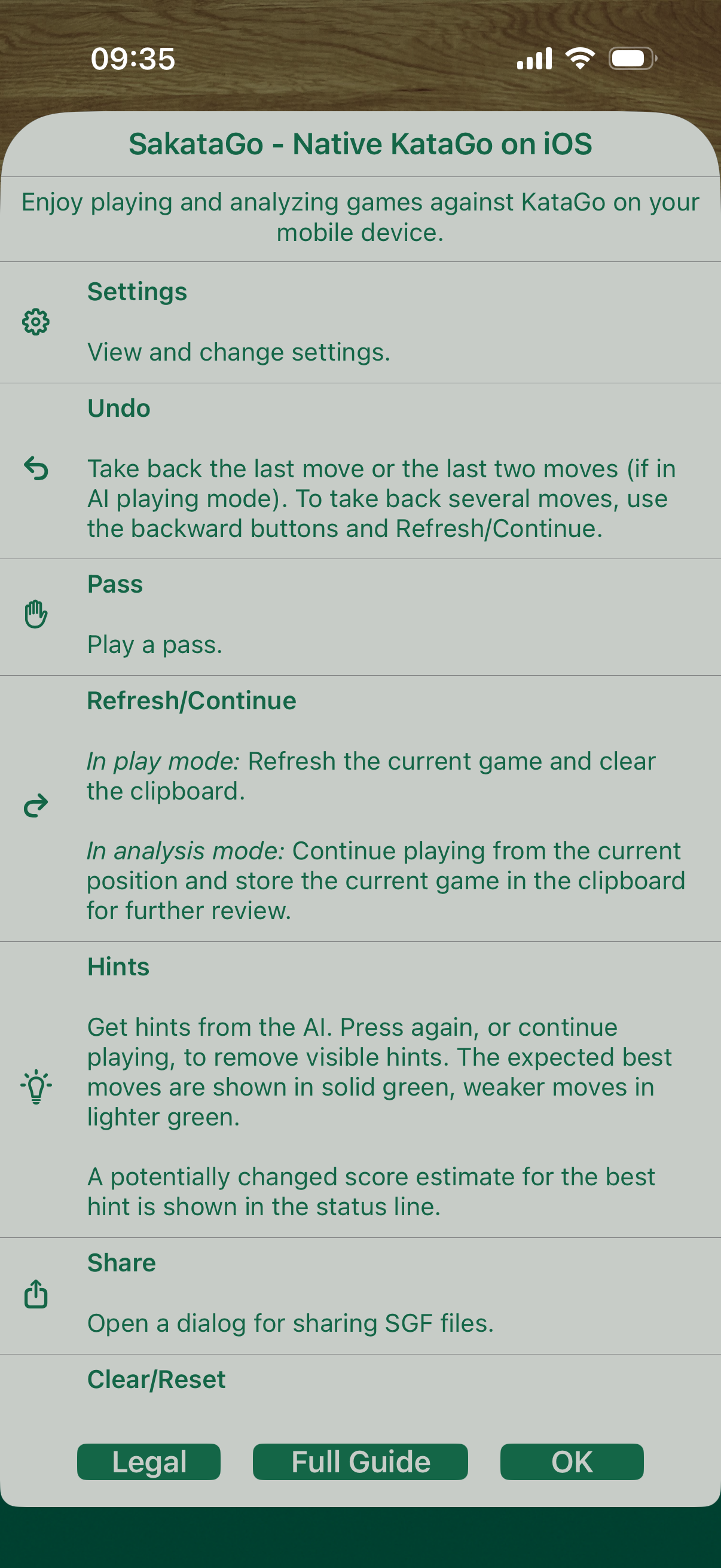
Help
SakataGo's help button (?) opens a manual in form of a scrollable short overview explaining the buttons and essential functionalities. The image shows the help screen in version 3.0.
A more detailed guide is available by pressing "Full Guide".
The "Legal" section provides full references to all open source packages used for SakataGo and further information.
In version 3.0+, you can use a long press on the help button to switch on or off on-screen tool-tip help texts for the buttons.
As from version 4.0, the help screen also explains the self play functionality, how to resign a game and how to switch on/off automatic hints in analysis mode.

About SakataGo
The latest version is v4.x (starting September 4, 2026).
The name SakataGo for the app is an idea by Jakob Hefer. It was chosen both in honor of Eio Sakata (坂田 栄男, 1920-2010) and KataGo (*2019), combining the names of one of the leading professionals of the 20th century with today's leading Go playing AI.
SakataGo was developed in 2025 by © Torsten Hefer, Cologne, Germany. It is proprietary software, all rights reserved.
The app relies on a modified version of the KataGo open source package, which in turn relies on several further open source packages. All packages needed for SakataGo are fully referenced in the app's legal section. The author of SakataGo wishes to express his great admiration for all the incredible work of the open source community that has made possible KataGo by "lightvector" (David Wu).
SakataGo itself is written mainly in Swift and C++, using the SwiftUI framework for the user interface. The contained open source components are also written in C++ and Swift. The app uses KataGo's Metal backend and game mode to profit from the full GPU power of Apple's devices for the neural net evaluations.
SakataGo requires iOS/iPadOS 18 or higher. This is mainly due to the fact that the GPU's Metal Performance Shaders do not run quickly and reliably enough with KataGo on devices not supporting iOS/iPadOS 18. In particular, the device should at least have an A13 chip on board and should have sufficient memory to support an app potentially using more than 1 GB of RAM.
The best user experience is on newer devices, but it was fully tested also on an iPhone 11 (A13). We tested on some pre-iOS 18 devices to see whether it is possible to lower the requirements. However, while the app will run on some iOS 17 devices, there are restrictions, and the user experience is clearly inferior, so we decided to require at least iOS 18 in the AppStore. The iPad 7th generation from 2019/2020 is a special case. This device is compatible with iOS 18, but has an old hardware (A10 Fusion) which is not fully compatible with all features of SakataGo. There will be some restrictions on this device, and the app will not run as smoothly as on newer devices.